This guide walks through the full Jobs-To-Be-Done (JTBD) lifecycle that Cairnloop supports
out of the box. You can follow every stage interactively by running the example app
(cd examples/cairnloop_example && mix setup && mix phx.server) and navigating alongside.
Route convention: All support routes are mounted under the path you pass to
cairnloop_dashboard/2in your router. This guide assumes/support— the example app's default. The customer chat widget lives at/chat.
The example app opens on a guided demo index that frames the scenario and links to every stage below — a good place to start clicking around:
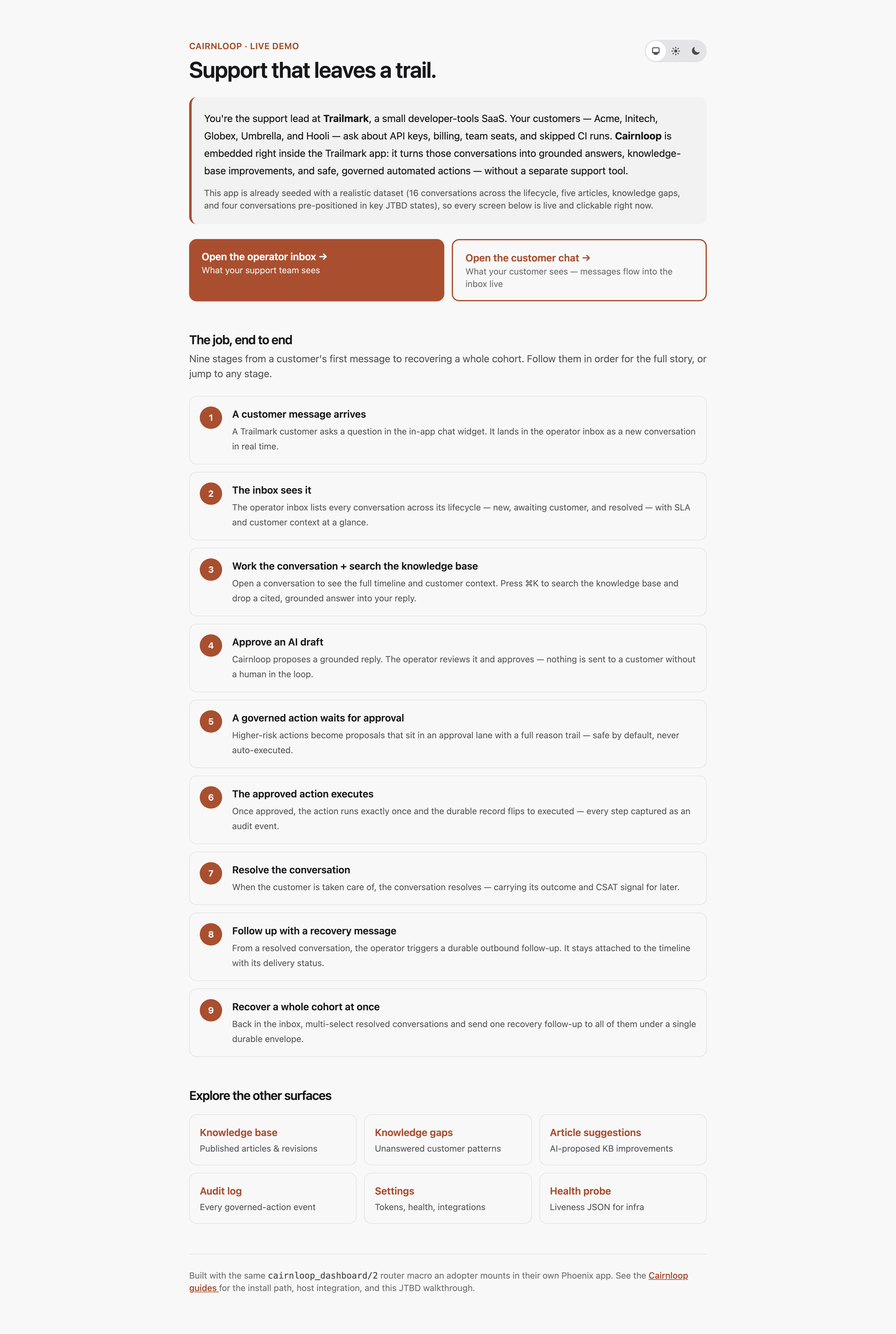
The screenshots in this guide are captured from the seeded example app. To refresh them, see
examples/cairnloop_example/screenshots/.
Stage 1: Seed — a customer message arrives
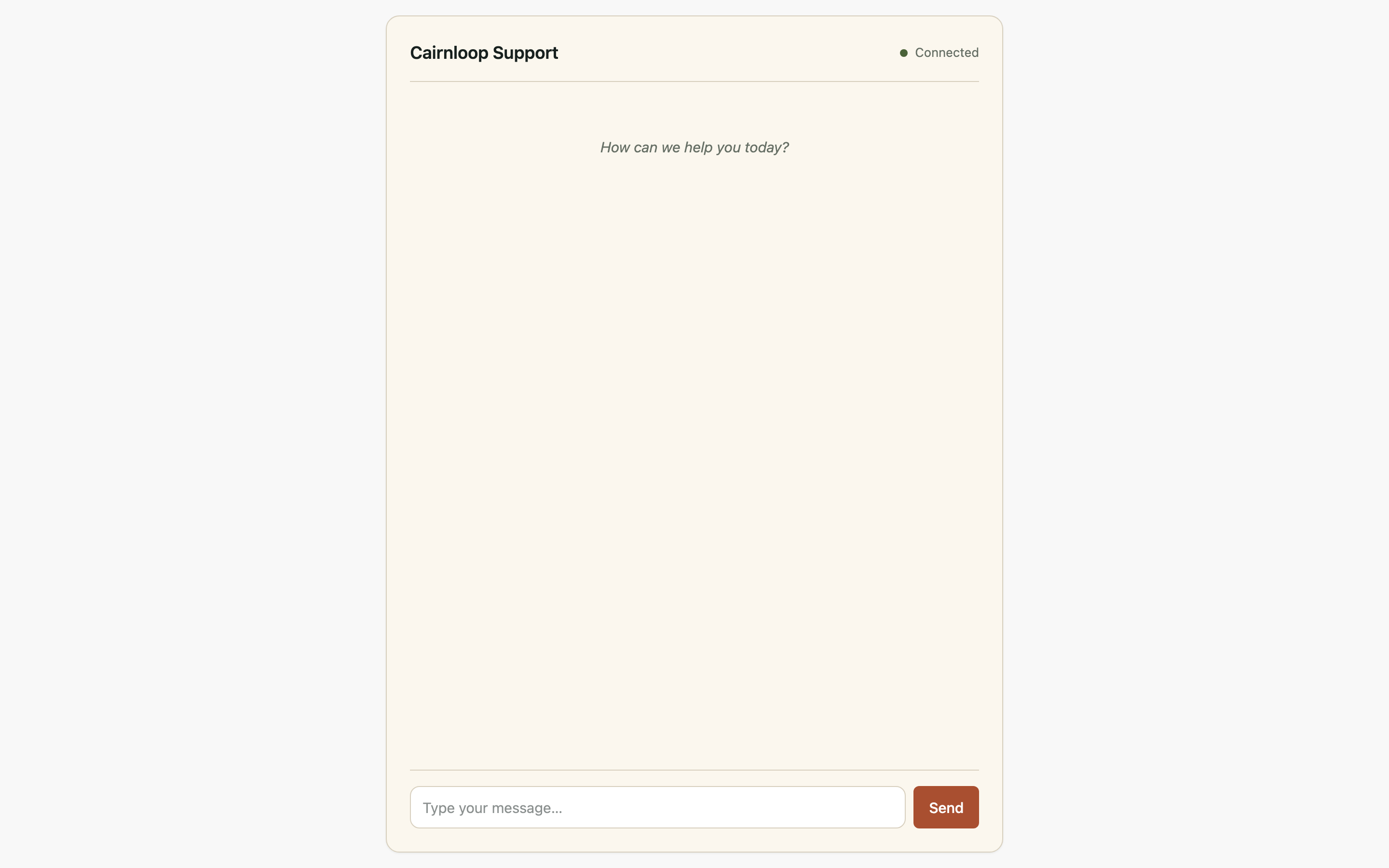
A customer submits a message through the embedded chat widget at /chat. On the customer side,
the Phoenix Channel (Cairnloop.Channels.WidgetSocket) receives the payload, persists a new
Conversation row with status :open, and appends an initial Message record with role :user.
No operator action is needed at this point. Cairnloop has recorded the inbound event durably in Ecto. From here, the conversation is visible across any operator session.
Stage 2: Inbox sees the conversation
The operator navigates to /support. The inbox rendered by Cairnloop.Web.InboxLive loads all
conversations the current operator can see.
Screen region: The inbox lists the seeded conversations spanning all status states — new, open, awaiting customer, and resolved. Each row shows the conversation subject, the customer identifier, the time since the last message, and a status chip. The just-seeded conversation appears at or near the top of the list.

At this stage, the operator can orient themselves across the support queue before selecting a conversation to work.
Stage 3: Conversation workspace — cmd+k search and citation chip
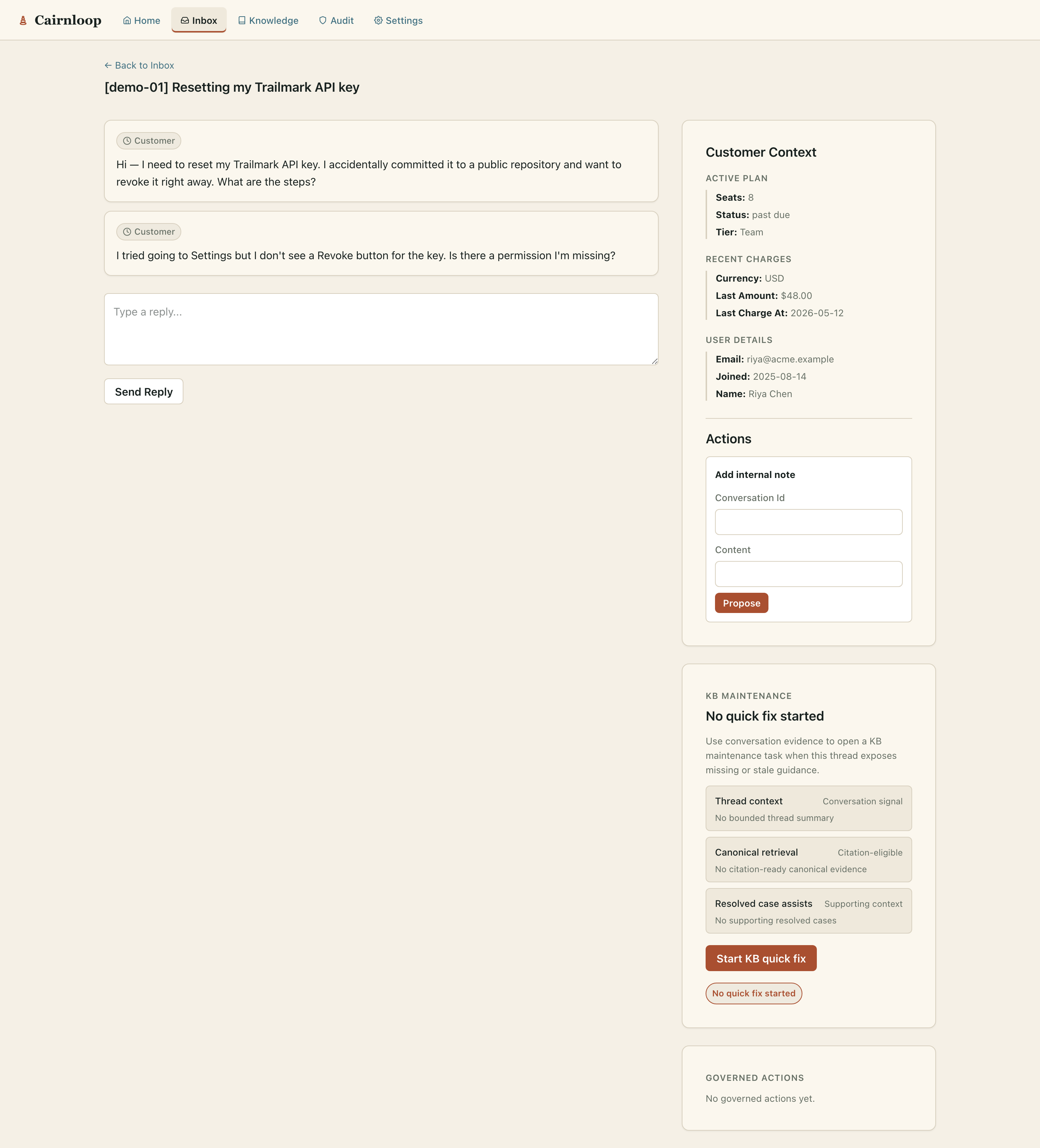
The operator clicks a conversation row and is taken to /support/:id — the conversation
workspace rendered by Cairnloop.Web.ConversationLive.
Screen region: The workspace splits into a main column (the conversation timeline: customer
messages, operator replies, AI draft cards, action event cards, and outbound bubbles) and a right
rail (customer context from ContextProvider, SLA status, governed-action history).
The operator presses cmd+k to open the search palette. They type a query — for example,
"refund" — and Cairnloop retrieves matching Knowledge Base articles and resolved support
evidence via the retrieval backend. Results appear with source, recency, and trust cues.
Screen region: The cmd+k modal shows a list of retrieval results. Each result card displays the article title, a short content excerpt, the source type (knowledge base or resolved case), and a trust level chip. Clicking a result activates it and places a citation chip in the operator's draft compose area.
The citation chip links the operator's eventual reply back to a grounded retrieval source — meaning no freeform AI output leaves the thread without an auditable evidence anchor.
Stage 4: Approve AI draft
Cairnloop's AI drafting engine prepares a suggested reply for the conversation. The draft
appears in the conversation timeline as a Draft card in :pending status, surfaced via
Cairnloop.Automation.
Screen region: The AI draft card shows the proposed reply text, the draft source (knowledge base articles or prior resolved cases that grounded the reply), and two actions: "Approve" and "Dismiss". An approval badge shows that a human decision is required before anything is sent to the customer.
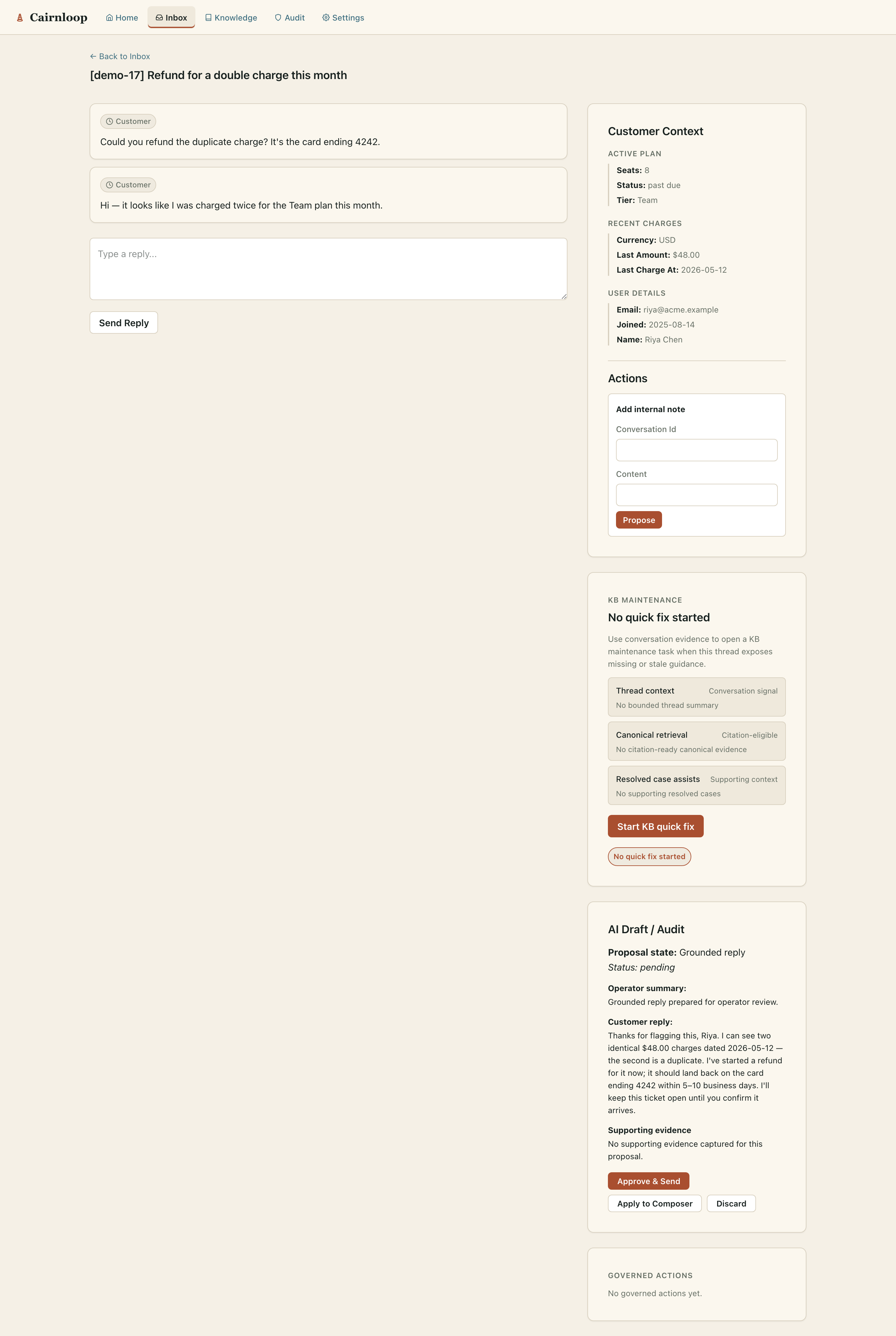
The operator reviews the draft text and evidence, then clicks "Approve". The draft status
transitions to :approved. The approved reply is appended to the conversation timeline and
becomes part of the durable support record.
No AI reply is sent to the customer without explicit operator approval. This is the human-in-the-loop (HITL) guarantee at the reply layer.
Stage 5: Governed tool proposal approve
The operator encounters a situation requiring a structured action — for example, updating an
account field or triggering a downstream system event. Cairnloop's governed-tool contract
routes this through Cairnloop.Governance.propose/3, which records a durable ToolProposal
row with a snapshotted risk tier, approval mode, and input before any execution occurs.
Screen region: The conversation timeline shows a governed-action card in :pending_approval
state. The card displays the tool title, a risk tier chip (e.g., "Low Write"), the proposed
inputs, and an approve/reject affordance. Trust facts are snapshotted at proposal time and do
not change between now and execution.
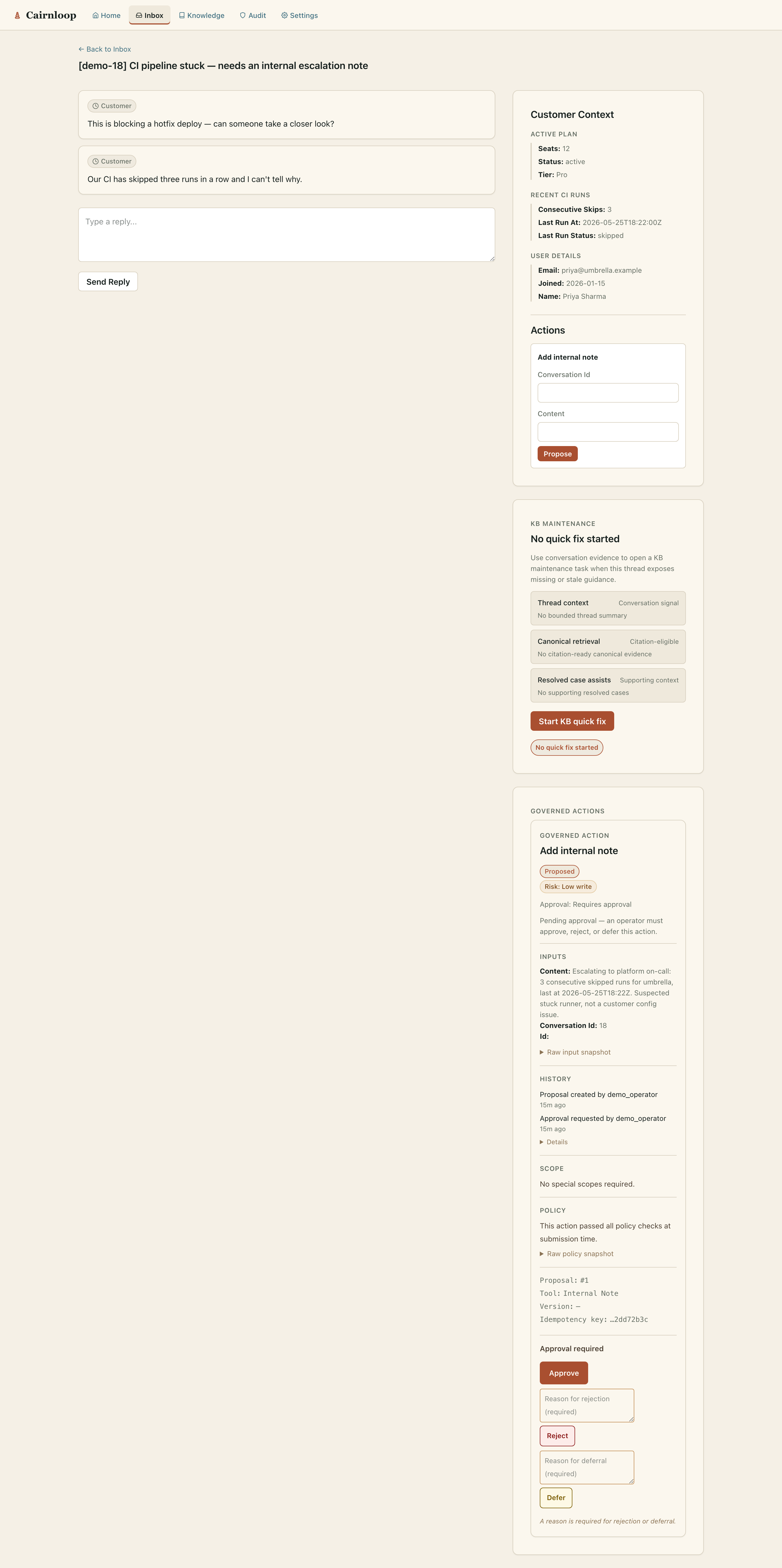
The operator reviews the proposal and clicks "Approve". The approval state machine in
Cairnloop.Governance records the decision via Governance.approve/3, transitions the
ToolApproval record, and enqueues the next step via Oban.
No governed action executes inline. Every proposal waits for explicit operator sign-off before the execution worker runs.
Stage 6: ToolExecutionWorker reaches :success
With approval granted, Cairnloop.Workers.ToolExecutionWorker runs the approved action. The
worker applies three-layer at-most-once idempotency: Oban unique keys, a terminal guard on the
worker itself, and a SHA-256 per-attempt run key.
Screen region: The governed-action card in the conversation timeline updates to show
"Action completed" with an execution timestamp. The risk tier chip changes to a success state.
A full append-only ToolActionEvent history is recorded on the proposal.
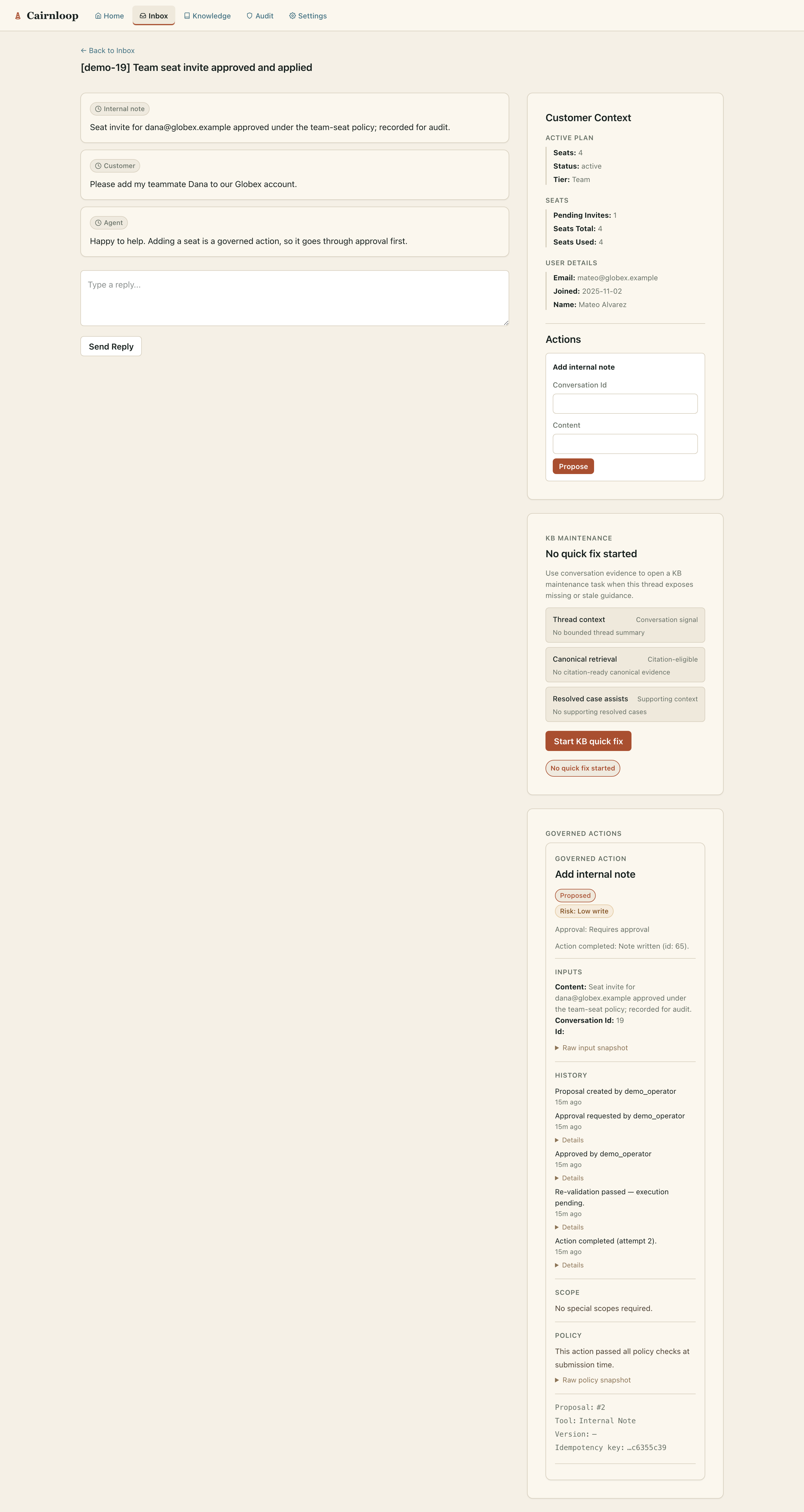
The execution result is part of the durable conversation record. If the worker were to fail or be retried, the idempotency guarantees prevent the action from running more than once.
Stage 7: Resolve the conversation
The operator closes out the support thread by resolving the conversation. Cairnloop calls
Cairnloop.Chat.resolve_conversation/2 directly (resolution is a domain function, not a
LiveView event), which transitions the Conversation status to :resolved and records the
resolution timestamp and actor.
Screen region: The conversation status chip in the workspace header changes to "Resolved". The conversation becomes ineligible for further AI drafting. A resolution timestamp and operator identifier appear in the thread metadata rail.
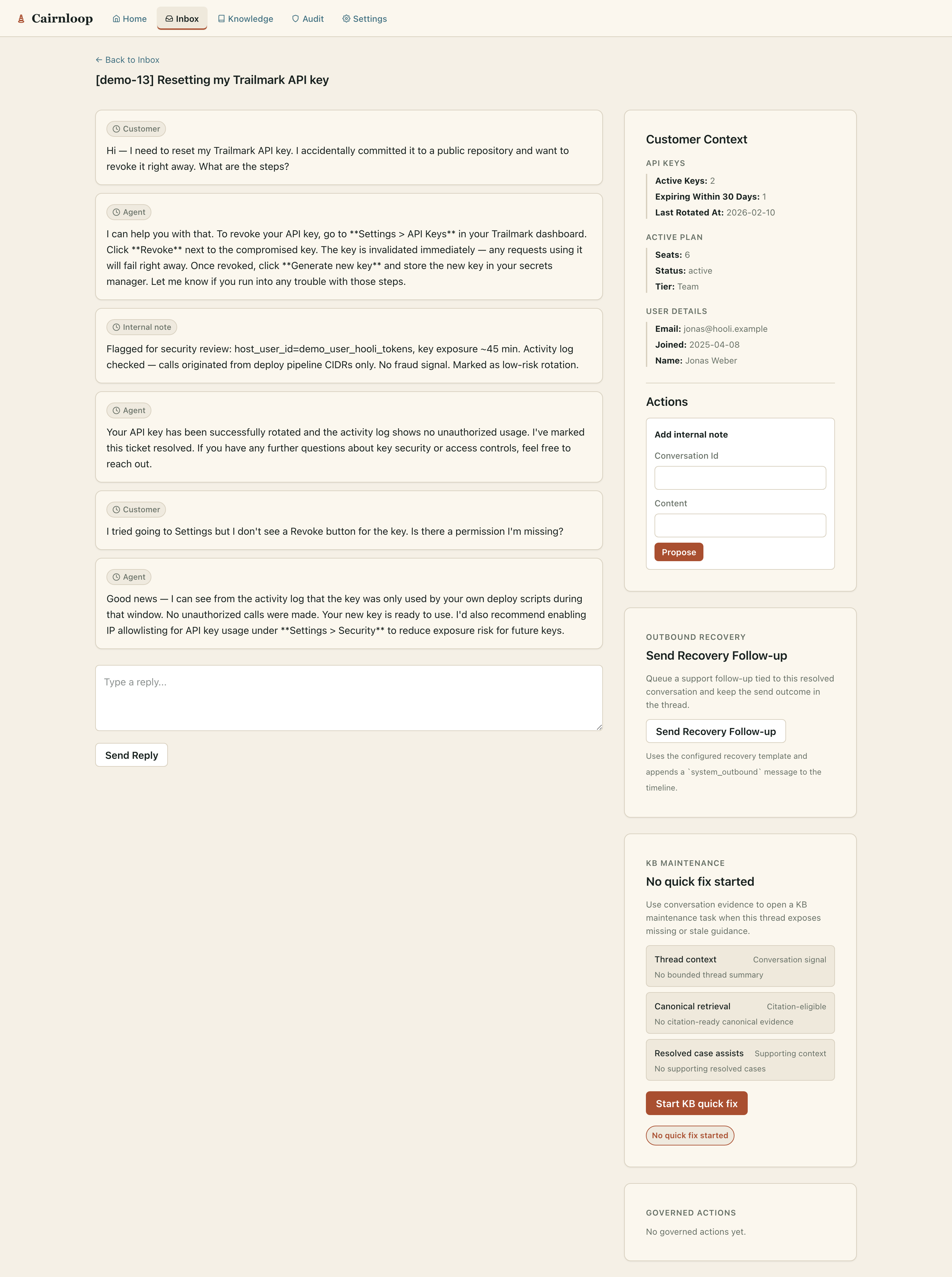
At resolution, Cairnloop emits both a bounded :telemetry span and a [:cairnloop, :conversation, :resolved]
domain event. The host Notifier behaviour receives on_conversation_resolved/2 — see
Host Integration for the full callback set.
Stage 8: Outbound trigger from the sidebar
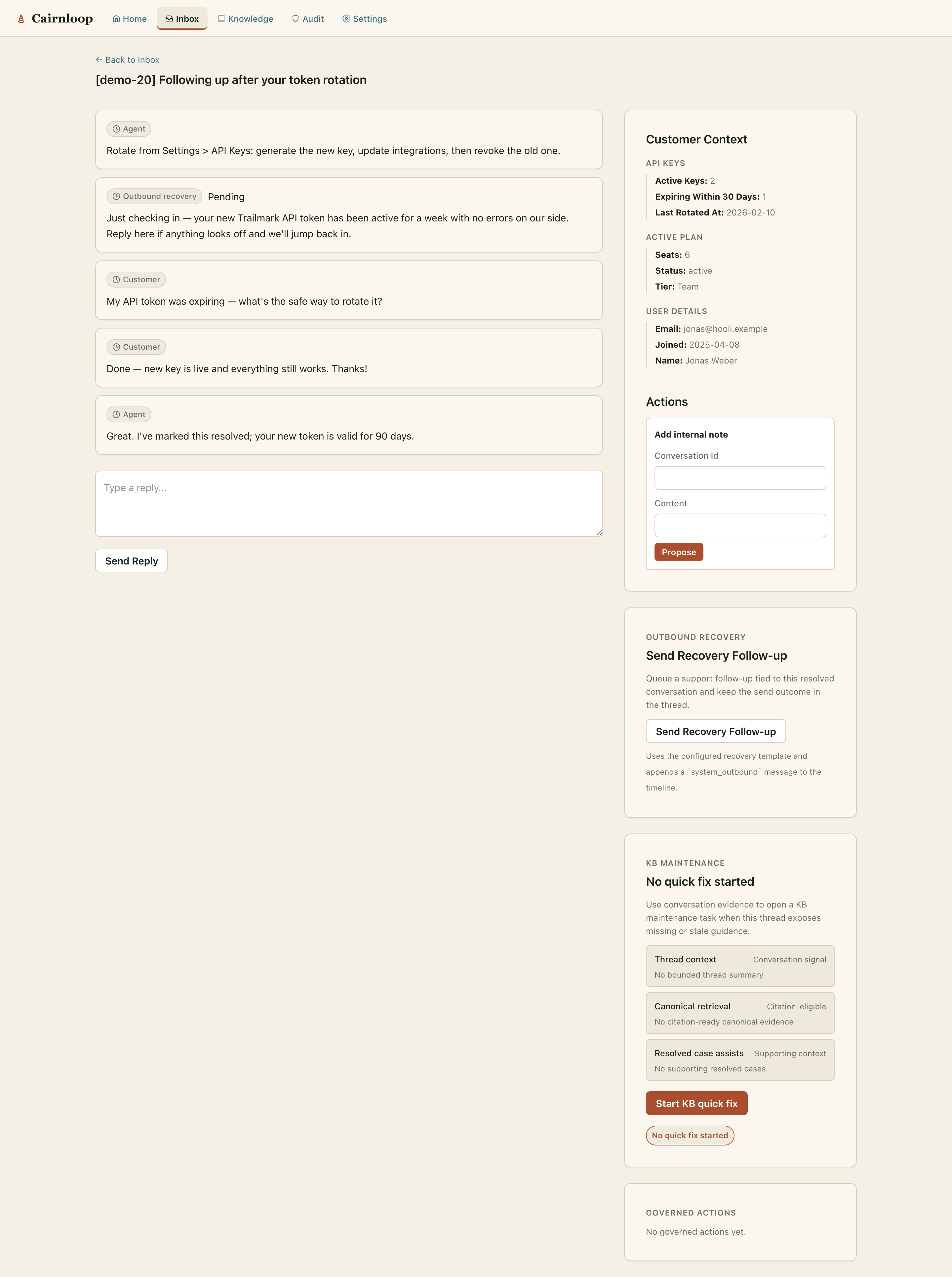
Now that the conversation is resolved, the operator notices a recovery follow-up opportunity in the sidebar. The sidebar renders a "Send Recovery Follow-up" button for resolved conversations that have not yet received a follow-up outbound message.
Screen region: The right rail of the resolved conversation shows a "Send Recovery
Follow-up" button. Clicking it opens a confirmation affordance that previews the outbound
message body (rendered from the configured outbound_recovery_template_id).
The operator confirms and Cairnloop calls Cairnloop.Outbound.trigger/2, which:
- Appends a
system_outboundmessage to the conversation timeline (withrole: :system_outbound). - Enqueues an
OutboundWorkerOban job that routes through the host'sNotifier.on_outbound_triggered/2.
Screen region: A new outbound bubble appears in the conversation timeline with a "Pending" delivery chip. After the Oban worker runs, the chip transitions to "Sent" or "Failed" depending on the Notifier return value.
Stage 9: Bulk recovery
The operator navigates back to /support and realizes there are several more resolved
conversations that need follow-up. Cairnloop supports bulk outbound via InboxLive
multi-select.
Screen region: In the inbox, each row has a checkbox. The operator selects multiple resolved conversations. A bulk action bar appears at the bottom of the inbox listing the selected count and a "Send recovery follow-up" button.
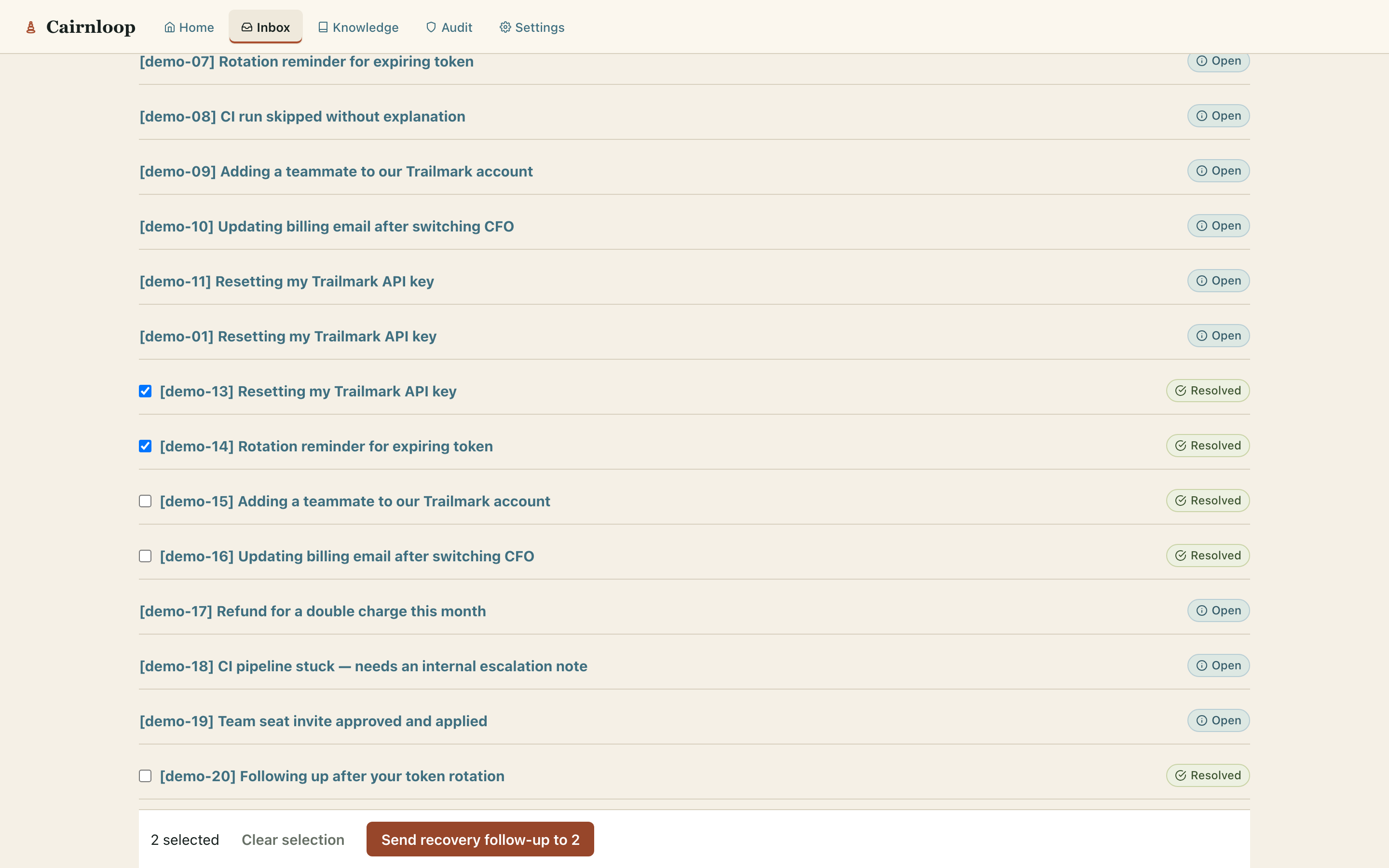
The operator clicks "Send Recovery Follow-up". A confirmation modal appears:
Screen region: The modal shows a preview of the outbound message body, a sample of the
first five recipient identifiers, and a count of the total cohort size. If the cohort exceeds
Cairnloop.Outbound.max_batch_size (25), a fail-closed refusal banner replaces the confirm
button — the bulk send is refused rather than silently capping the batch.
The operator confirms. Cairnloop calls Cairnloop.Outbound.bulk_trigger/2, which:
- Records a
BulkEnvelopeaudit row with status:submitted(or:refused_cap_exceededif the cap was exceeded). - Enqueues one
OutboundWorkerOban job per recipient, each with an at-most-once Oban unique key scoped to(conversation_id, template_id, bulk_envelope_id).
Screen region: The bulk action bar disappears and the inbox deselects all rows. Each
recipient conversation now has a pending outbound bubble in its timeline. Operators can inspect
the BulkEnvelope row via the Governance audit facade
(Cairnloop.Governance.list_recent_bulk_outbound_envelopes/1).
This walkthrough covers all nine stages of the JTBD lifecycle from first customer message
through bulk recovery fan-out. The same sequence is exercised in CI by the integration smoke
test at test/integration/golden_path_test.exs.
Beyond the thread: the supporting surfaces
The same operator dashboard exposes the surfaces that turn day-to-day support into durable knowledge and an auditable trail.
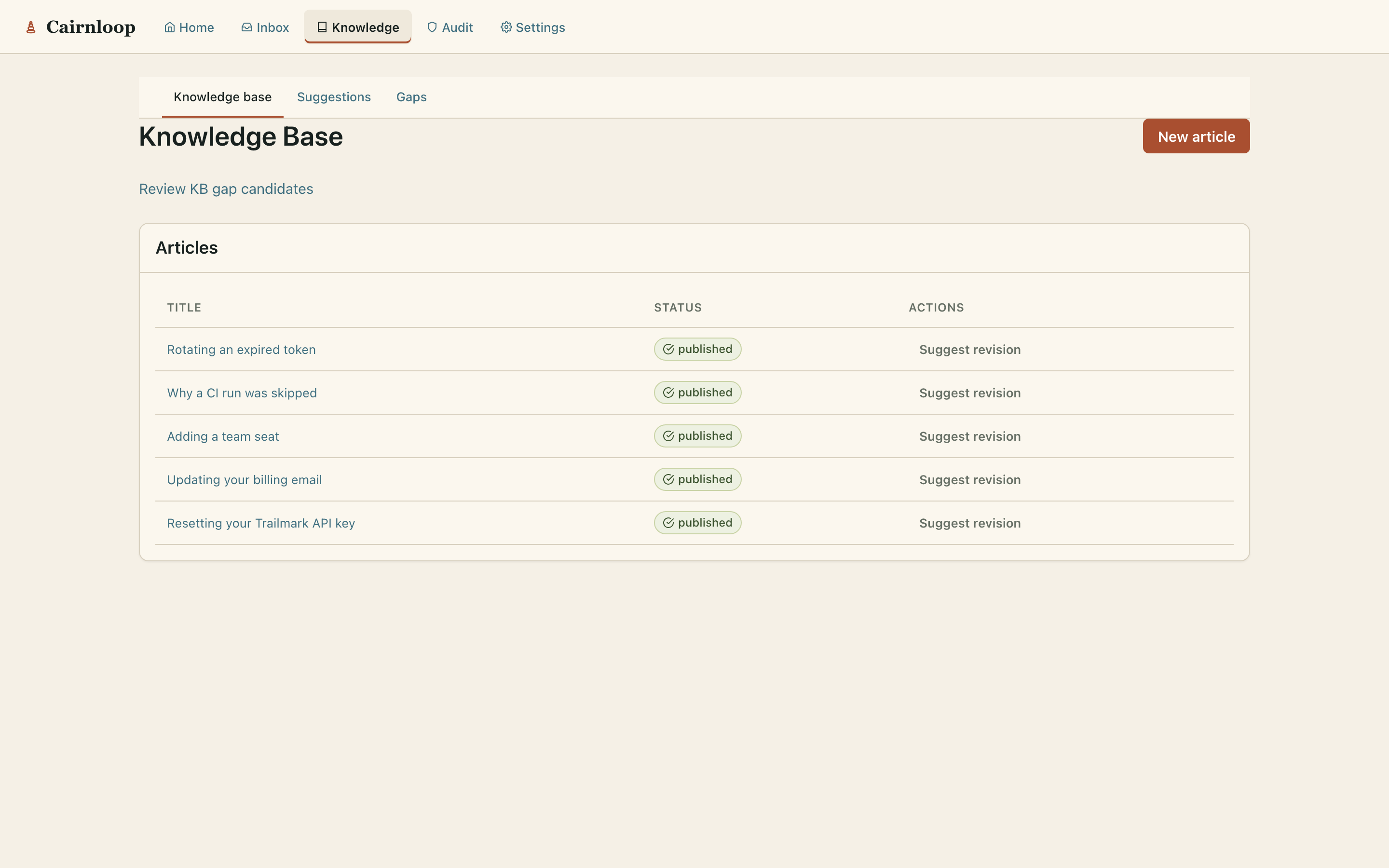
Knowledge base (/support/knowledge-base) — published articles and their revision history:
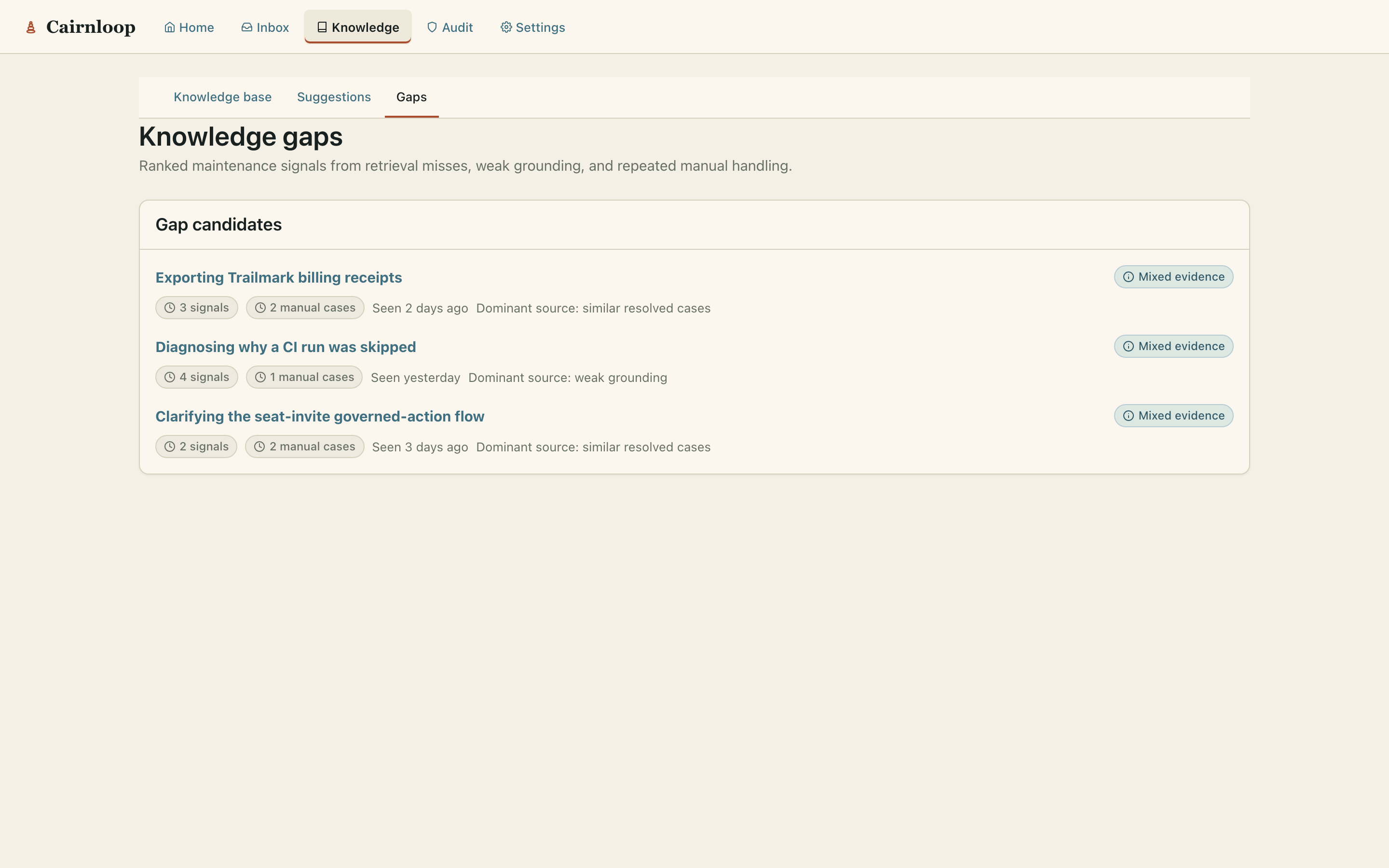
Knowledge gaps (/support/knowledge-base/gaps) — recurring unanswered patterns surfaced from
real conversations, ready to become new articles:
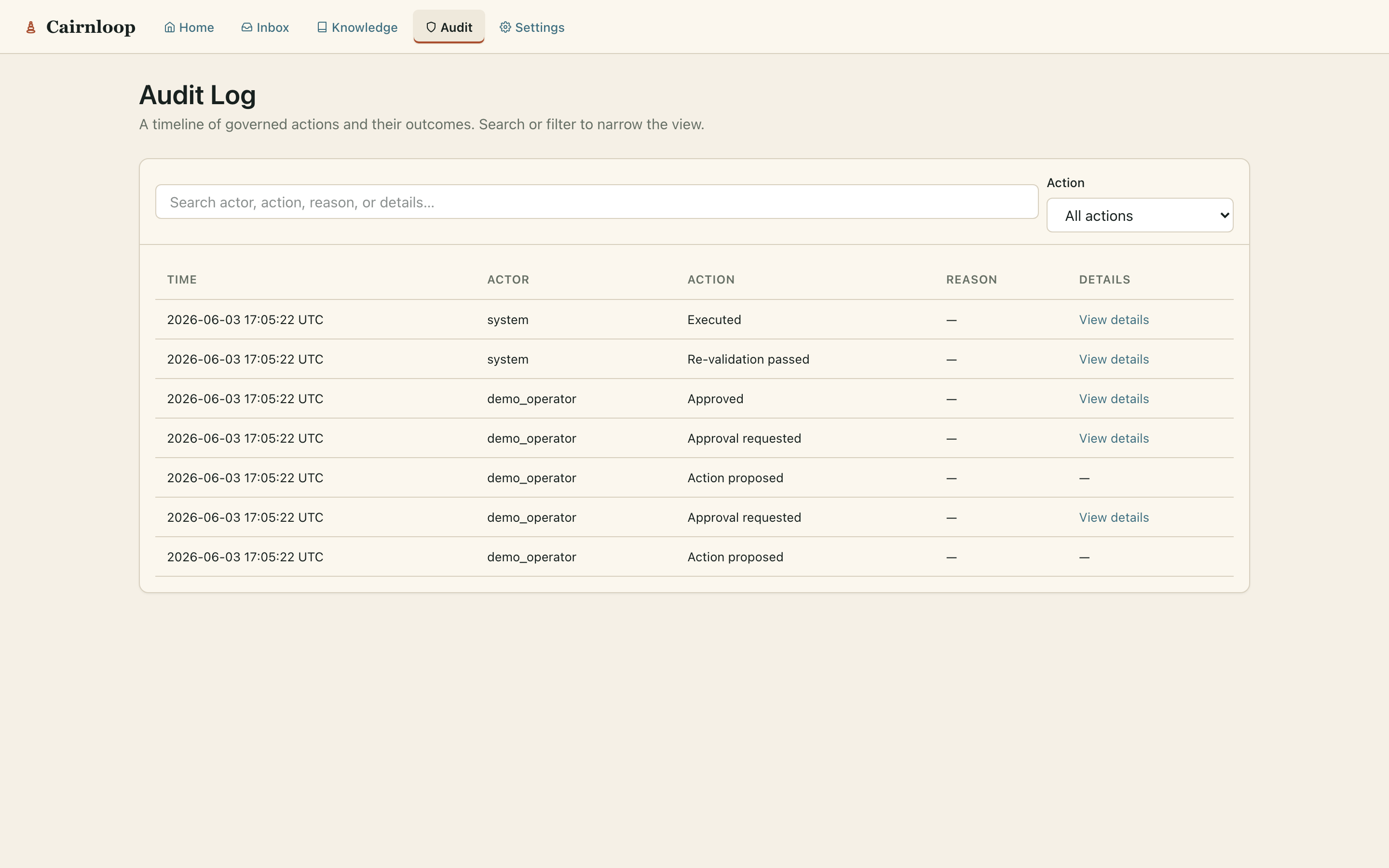
Audit log (/support/audit-log) — the append-only timeline of every governed-action event,
newest first:
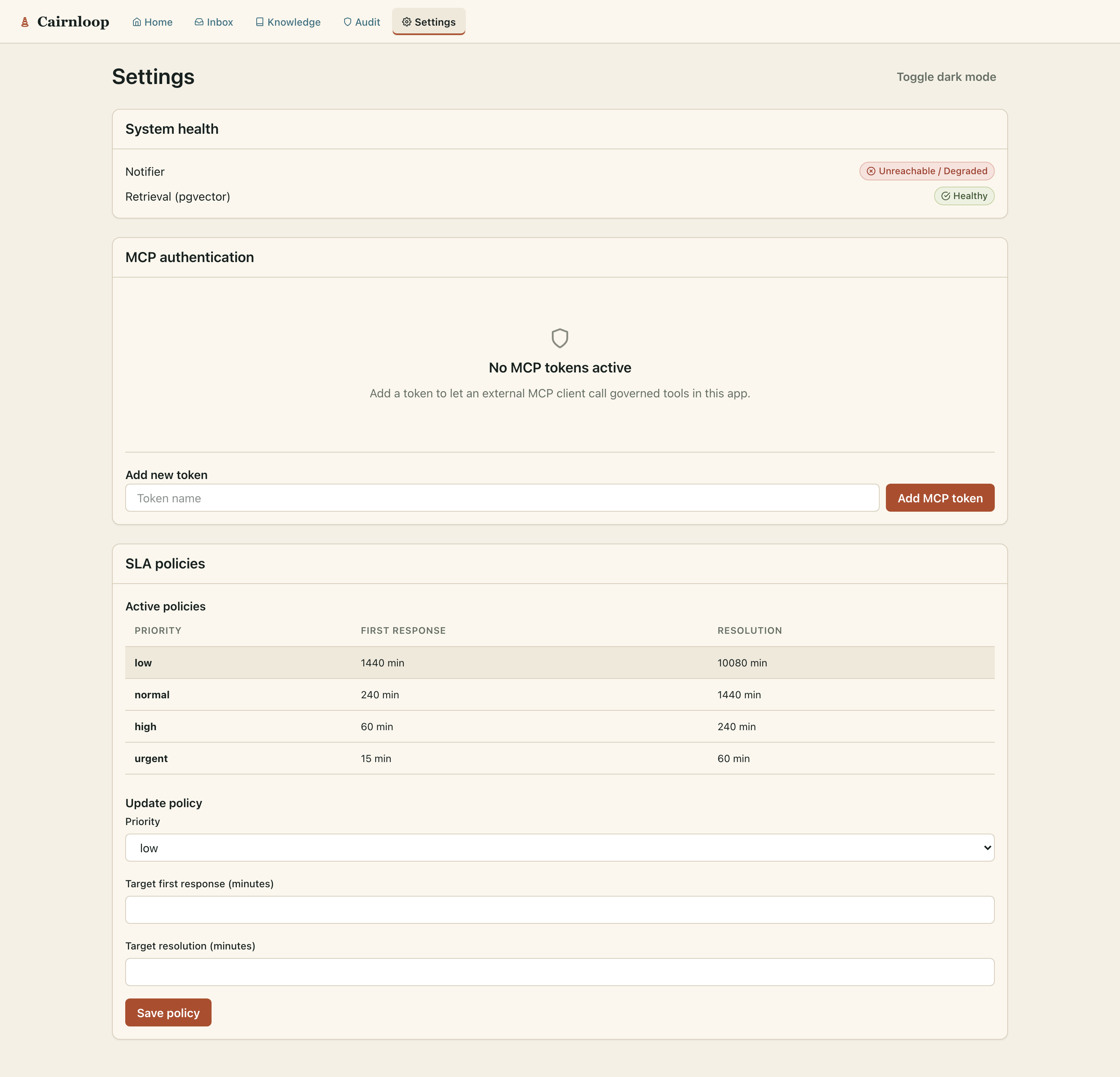
Settings (/support/settings) — MCP tokens, Notifier health, the retrieval index, and Oban
job state:
Refreshing these screenshots: boot the seeded example app (
cd examples/cairnloop_example && mix ecto.reset && mix phx.server) and run the capture tool inexamples/cairnloop_example/screenshots/(npm install && npm run capture). It drives the demo with Playwright and rewritesguides/assets/. The capture is non-gating and asserts nothing — the deterministictest/integration/golden_path_test.exsremains the source of CI truth.